
"Apple could not verify" this app: what it means
2 October 2026 · updated 14 October 2026 · macos · gatekeeper · install
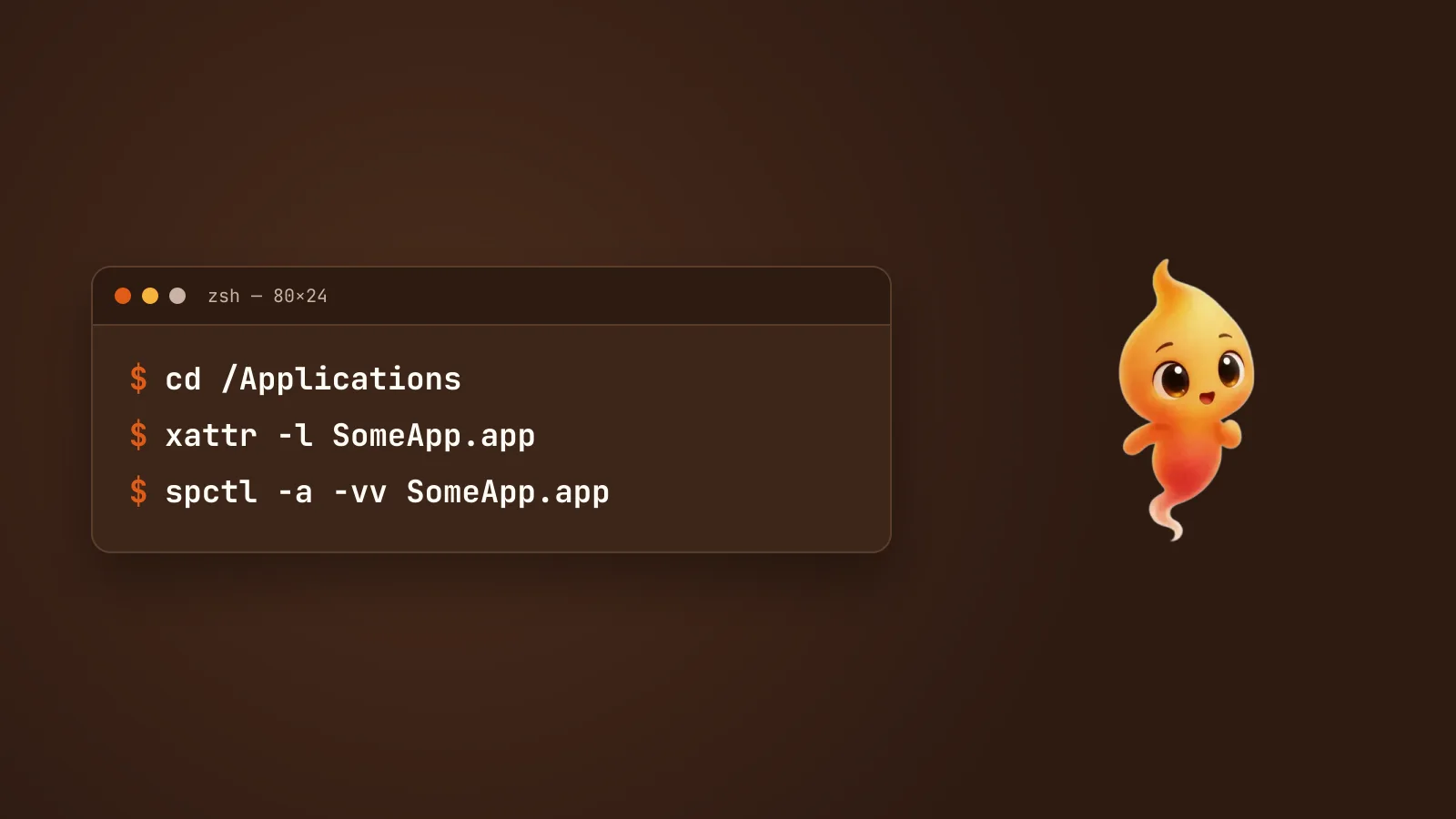
If you’ve downloaded an app from outside the Mac App Store, you’ve probably seen this: macOS refuses to open it and says Apple could not verify that it is free of malware. It sounds alarming. Usually it means something much narrower than it sounds.
Minnie triggers this warning during the beta, so here is a plain explanation of what is going on, how to check an app for yourself, and how to decide whether to open one anyway.
What the warning actually means
macOS has a feature called Gatekeeper. When you open a downloaded app, Gatekeeper checks two things:
- Is it signed with a Developer ID, a certificate from Apple that ties the app to a known developer?
- Is it notarized, meaning the developer sent it to Apple for an automated malware scan?
If either is missing, you get the warning. It doesn’t mean the app was scanned and found to be dangerous. It means Apple has no record of it either way.
Every unsigned app gets the same message, whether it’s malware or a hobby project.
Signed and notarized are not the same thing
People use these interchangeably and they are different claims.
Signing is an identity claim: this app was built by the holder of this Apple Developer account, and nobody has modified it since. It says who, not what. A signature does not mean Apple looked at the code.
Notarization is a scan: the developer uploads the build, Apple runs automated malware checks, and if it passes, Apple issues a ticket that macOS can check. It is an automated scan, not a review — nobody at Apple used the app or read the source.
So a signed, notarized app is one where you know who made it and an automated scanner found nothing known-bad. That is genuinely useful — it means a malicious developer can be identified and their certificate revoked, which is most of the deterrent — but it is a much weaker statement than “Apple says this app is safe”.
The inverse matters too: an unsigned app is not an app that failed a check. It is an app that never took the test.
What quarantine actually is
The warning comes from a flag, not from the app. When Safari, Chrome, Mail or
Messages save a file, macOS attaches an extended attribute called
com.apple.quarantine to it. That attribute is what tells Gatekeeper to run its
checks on first open.
You can see it yourself:
xattr -l /Applications/SomeApp.appIf com.apple.quarantine is listed, that app came from the internet and has not
been cleared yet. This is also why dragging an app out of a downloaded disk image
can be stickier than people expect — Finder copies the quarantine flag onto the
copy.
How to check an app yourself
You do not have to take anyone’s word for it. Three commands tell you most of what there is to know:
spctl -a -vv /Applications/SomeApp.app
codesign -dv --verbose=4 /Applications/SomeApp.app
xattr -l /Applications/SomeApp.app
spctl gives Gatekeeper’s verdict in one line — accepted, rejected, and why.
codesign prints who signed it, including the team identifier, so you can check the
name matches the developer you think you are downloading from. xattr shows the
quarantine flag and, usefully, the URL the file came from.
That last one is worth a look on anything you are unsure about. If you believe you downloaded an app from a developer’s own site and the quarantine attribute records a different domain, stop.
What changed in recent macOS
For years the standard advice was: control-click the app, choose Open, and confirm. That shortcut is gone. From macOS 15 Sequoia, Apple removed the control-click bypass. The supported route is now:
- Try to open the app normally. macOS blocks it.
- Open System Settings → Privacy & Security.
- Scroll to the bottom, find the message about the blocked app, and click Open Anyway.
You do this once per app. Some Sequoia point releases made even this route unreliable for certain unsigned apps, which is why many developers now ship an explicit Terminal command instead — it removes the quarantine attribute directly rather than negotiating with the dialog.
The direction of travel here is clear, and it is worth being honest about: Apple is steadily narrowing the paths to running unsigned software. That is defensible from a security standpoint and genuinely hard on small developers and open-source projects, for whom $99 a year and an Apple developer account is a real barrier.
Why some apps aren’t signed
A Developer ID costs $99 a year, and signing is not a one-click affair: there are certificates to manage, a notarization step in every release, and an Apple developer account to maintain. Plenty of small, open-source and early-stage apps don’t have one yet. Minnie is one of them: she isn’t signed during the beta, and signing comes with version 1.
How to decide whether to open it
The warning moves the decision to you, so make it deliberately:
- Do you know where it came from? Download only from the developer’s own site or their official release page, never a mirror, never a “download here” aggregator.
- Is the developer reachable? A real site, a support address, a public changelog, a name attached to it.
- Does the app explain what it does? Especially if, like Minnie, it can run commands on your machine.
- Is anyone else using it? A GitHub repo with issues in it, a forum thread, a review. Not proof, but an unsigned app that nobody has ever mentioned anywhere is a different proposition from one with a user base.
If any of those make you hesitate, don’t open it. That’s the warning doing its job.
And the uncomfortable corollary: a signature is not a safety guarantee either. Signed, notarized malware exists. Stolen and abused Developer ID certificates are a real category of incident. Signing tells you who to blame, which is valuable, but it does not replace the judgement above.
Opening an app you trust
Two routes.
Through System Settings. The three steps listed earlier. This is the route Apple supports and the one to try first.
By removing the quarantine flag. A Terminal command that strips the attribute
from the app in /Applications, so the warning doesn’t keep coming back:
xattr -dr com.apple.quarantine /Applications/SomeApp.appOnly run commands like that for an app you have already decided to trust, and only when they come from the developer’s own instructions. A command you found in a forum, pasted from a search result, or were sent by someone helpful is exactly the vector this whole system exists to catch.
Minnie’s download page has the exact three-line command for her, plus the System Settings route if macOS still blocks it.
Then look in your menu bar
One more thing that confuses people after installing Minnie: she has no Dock icon, on purpose. Look for the paw in your menu bar at the top of the screen and click it to wake her.
Will this go away?
Yes. Once Minnie is signed and notarized, macOS will open her like any other app. Until then, the warning is a one-time step, not a sign that something is wrong.
If you are weighing up Mac apps in this space generally, Desktop pets for Mac: Shimeji, Bongo Cat and co covers several, and most of them are unsigned for exactly the reasons above.