
Gemini CLI stopped working? Moving to Antigravity on Mac
19 October 2026 · gemini cli · macos · install
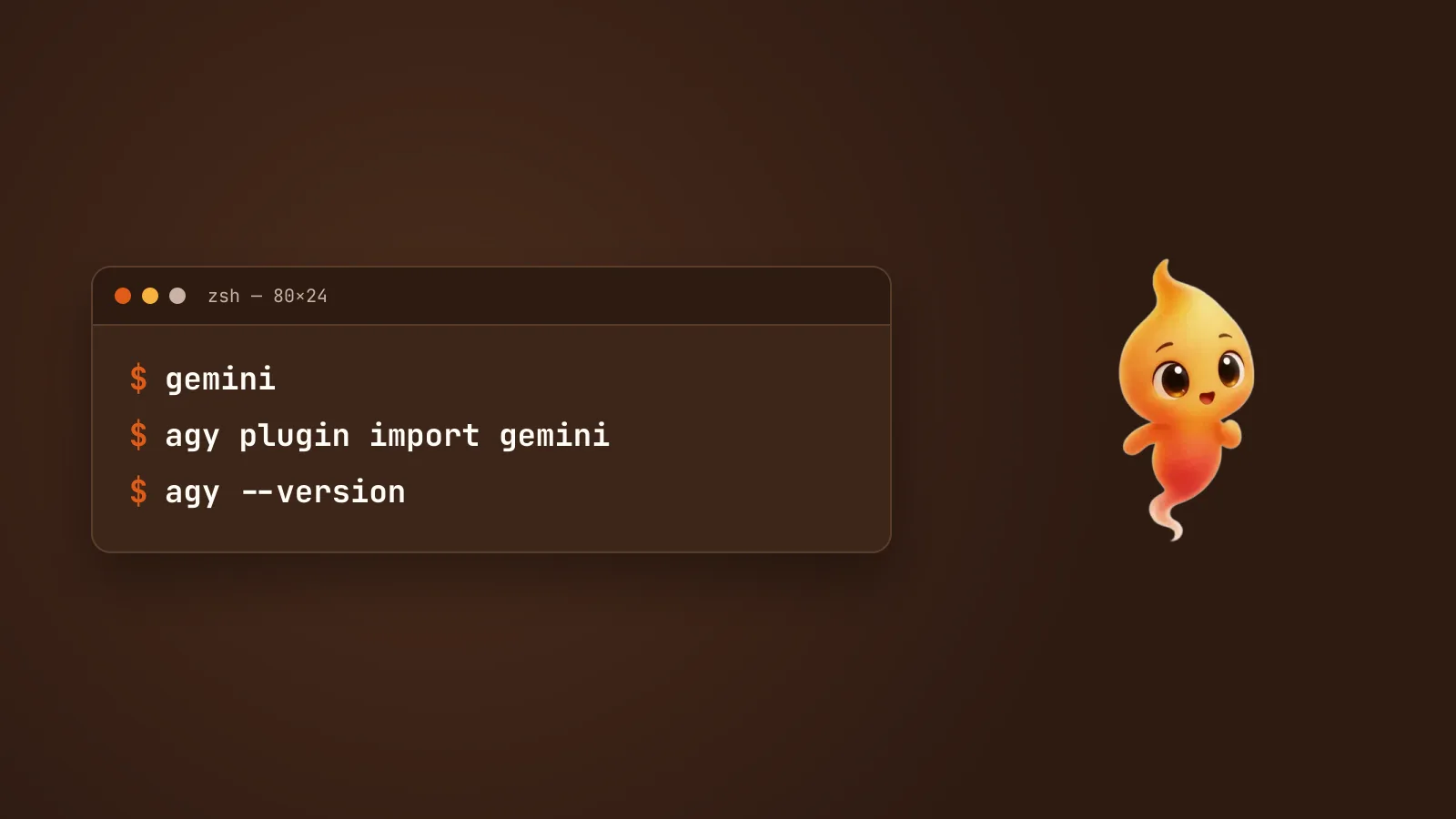
If Gemini CLI used to work and now doesn’t, and you sign in with your personal Google account, it’s probably not your setup. Google moved most individual users off Gemini CLI in 2026. On a Mac there’s a second problem on top of that: the Homebrew package most guides tell you to install has been frozen for months.
Here’s what changed, how to tell if it affects you, and how to move to the replacement without losing your setup.
The short answer
- Free tier, or Google AI Pro / Ultra, signing in with Google: Gemini CLI
stopped serving your requests on 18 June 2026. Install Antigravity
CLI (the command is
agy). It has a free tier and can import your Gemini CLI setup. - Paid Gemini API key, or a company Code Assist Standard / Enterprise licence: Gemini CLI still works for you. If you installed it with Homebrew, switch to npm, because the Homebrew formula is deprecated and stuck on an old version.
What Google changed
Google announced the change on its developer blog in May 2026, and it took effect on 18 June. From that date, Gemini CLI and the Gemini Code Assist IDE extensions stopped serving requests for:
- the free tier (Gemini Code Assist for individuals)
- Google AI Pro and Google AI Ultra subscribers
This isn’t a model restriction. Gemini CLI stops working for these accounts altogether. Google’s replacement for them is Antigravity CLI, a new terminal tool written in Go that runs on the same agent engine as the Antigravity app.
Gemini CLI itself isn’t gone. It’s still open source under Apache-2.0, still released every week, and still supported for:
- organisations with a Gemini Code Assist Standard or Enterprise licence
- organisations using Code Assist for GitHub through Google Cloud
- anyone using a paid Gemini API key or a Gemini Enterprise Agent Platform key
Even for those users, the project’s README now points people to Antigravity CLI for the best experience with the newest Gemini models.
Which one are you?
Think about how you started Gemini CLI the first time:
| You chose | You are | What to do |
|---|---|---|
| Sign in with Google, personal account | Free, AI Pro or AI Ultra | Move to Antigravity CLI |
Sign in with Google, work account, with GOOGLE_CLOUD_PROJECT set |
Probably a Code Assist licence | Ask your admin; likely nothing changes |
GEMINI_API_KEY from AI Studio, with billing on |
Paid API key | Keep Gemini CLI |
GEMINI_API_KEY, free key |
Unclear | Google’s notice only promises paid keys |
That last row is honest uncertainty. Google’s announcement says Gemini CLI stays available through paid API keys and says nothing either way about free ones.
The Homebrew trap
If you’re on a Mac and followed almost any install guide, you ran
brew install gemini-cli. Check what that gave you:
gemini --version
brew info gemini-cli
As of October 2026, Homebrew’s gemini-cli formula is:
- deprecated since 18 June 2026, the same day as Google’s change, with the reason given as not supported upstream
- stuck on version 0.46.0, while npm has been shipping new versions every week, 0.64.0 at the time of writing
- set to be disabled on 18 December 2026, after which Homebrew won’t install it at all
- pointing to
antigravity-clias its replacement
So a Mac that installed Gemini CLI through Homebrew is running a release
from months ago and will never get another update from brew upgrade.
If you’re keeping Gemini CLI because you have a paid key or a licence, swap the Homebrew copy for the official npm package. It needs Node.js 20 or newer:
brew uninstall gemini-cli
npm install -g @google/gemini-cli
gemini --version
The project publishes three npm channels. latest is the stable release,
every Tuesday. preview is the next week’s release, and nightly is built
from the main branch every day. Stay on latest unless you have a reason
not to.
Installing Antigravity CLI on a Mac
Google’s install script is the documented route:
curl -fsSL https://antigravity.google/cli/install.sh | bashThere’s also a Homebrew cask, the replacement the old formula points to, and it auto-updates:
brew install --cask antigravity-cliEither way, the command is agy, not gemini:
agy --versionIf that says command not found: agy: the install script puts agy in
~/.local/bin, the same folder the Claude Code installer uses, and on many
Macs that folder isn’t on your PATH. The fix is the same one-line change
to ~/.zshrc. zsh: command not found: claude on Mac,
fixed walks through it, including the
bash-on-macOS detail that trips people up.
The first time you run agy, it asks for a colour scheme, a display mode
(full-screen or inline) and whether to trust the current folder. Then it asks
you to sign in. Personal Google accounts on the free, Pro and Ultra plans use
the same Google sign-in Gemini CLI did.
Is it free?
There’s a free plan for individuals, with basic weekly rate limits. Google AI Pro and Ultra subscribers get higher limits, and businesses pay per seat or per use through Google Cloud. One real difference from Gemini CLI: it isn’t open source. Its GitHub repository is there for issues and feedback, and it doesn’t contain the source code or a licence.
Bringing your Gemini CLI setup across
You mostly don’t have to start again.
Automatic import. The first time you run agy on a Mac that has Gemini
CLI config, it finds your old setup and offers a checklist of what to bring
over. That covers settings, extensions, and your sign-in, which moves into the
macOS Keychain.
Extensions become plugins. If you skipped that step, or added extensions later, run:
agy plugin import geminiIt converts your Gemini CLI extensions to Antigravity plugins, turns custom commands into skills, and moves your MCP server definitions into the new config file.
GEMINI.md keeps working. Antigravity CLI reads GEMINI.md and
AGENTS.md in your project and the global ~/.gemini/GEMINI.md. You don’t
need to change anything.
Two things it won’t move for you:
- Project skills. Workspace skills move from
.gemini/skills/to.agents/skills/. Rename that folder yourself in each repo. Global skills live in~/.gemini/antigravity-cli/skills/now. - MCP config. Servers no longer sit inside
~/.gemini/settings.json. They have their own file:~/.gemini/config/mcp_config.jsonglobally, or.agents/mcp_config.jsonin a project. For remote servers, theurlorhttpUrlkey is now calledserverUrl. If a remote MCP server silently stops connecting after the move, check that key first.
Google says itself that there’s no 1:1 feature parity yet. Expect a few missing pieces, mostly around custom themes and visual extras, and check the features you rely on before deleting your old config.
Should you switch, or switch agents?
If Gemini models were the reason you used Gemini CLI, Antigravity CLI is where they live now for individual users. It’s the obvious move. If you mainly used it because it was free, this is a good moment to look at the alternatives properly. Claude Code vs Gemini CLI vs Codex on a Mac compares them by what each is actually good at.
Whichever you land on, Minnie works with it. She supports
Claude Code, Gemini CLI, Codex and Antigravity CLI (agy), so switching agents doesn’t
mean giving up the voice control or the desktop pet. The details differ by
agent, especially around permission prompts, and Claude Code, Gemini CLI or
Codex: one desktop pet for all
covers exactly what you get with each.