
zsh: command not found: claude on Mac, fixed
14 October 2026 · claude code · macos · install
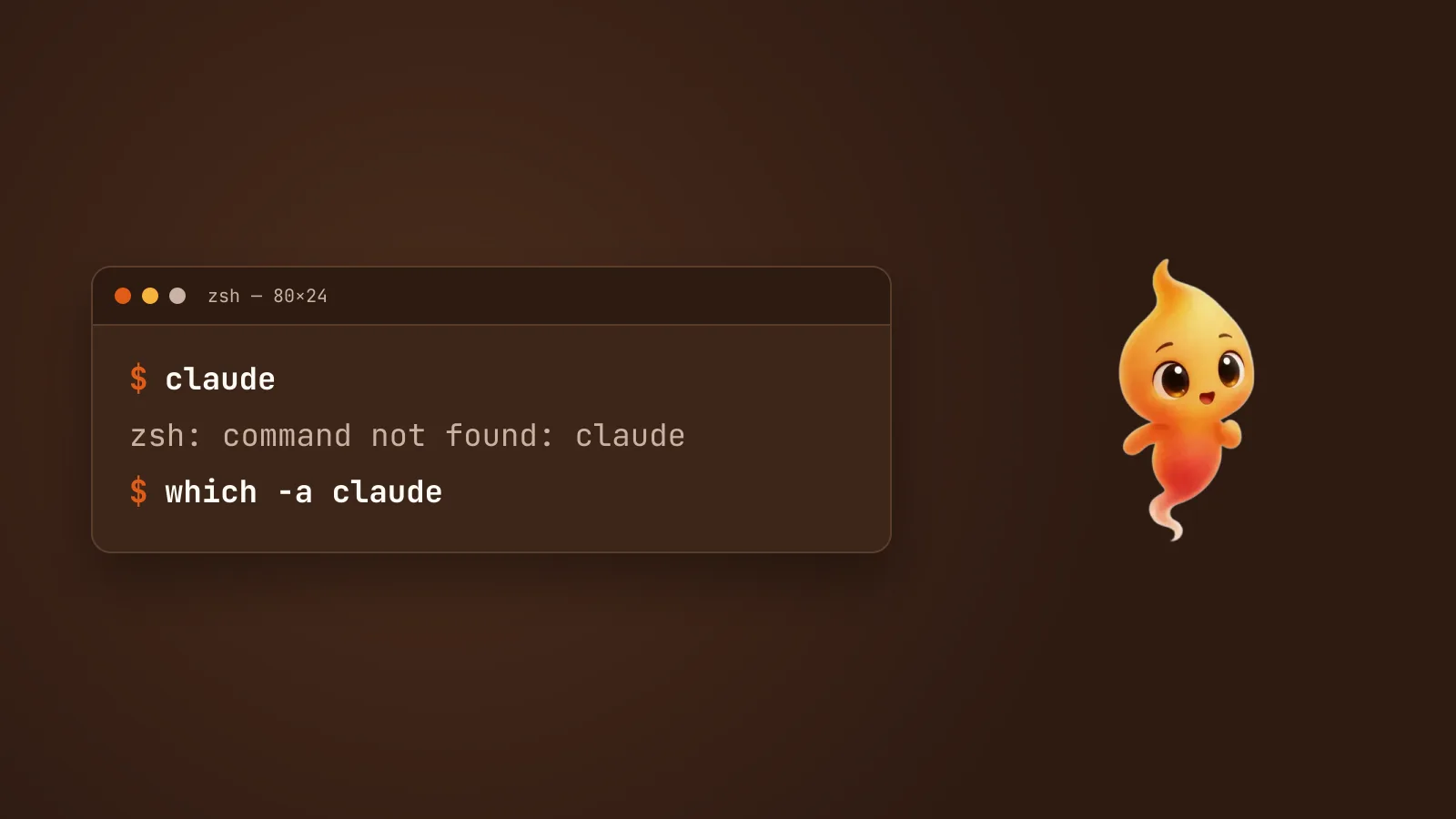
You ran the installer, it finished without complaining, and then:
zsh: command not found: claudeClaude Code is almost certainly on your Mac. Your shell just can’t find it. On macOS that comes down to five causes, and you can rule each one out in under a minute. Work through them in order. The first two cover most cases.
First, find out what you actually have
Run these three commands. They tell you where claude is installed, if it’s
installed at all, before you change anything:
ls -la ~/.local/bin/claude
which -a claude
echo $SHELL- The first checks for the native installer’s copy. If it prints a
symlink pointing into
~/.local/share/claude/versions/, Claude Code is installed. If it printsNo such file or directory, the native installer didn’t put it there. That isn’t necessarily a problem if you used Homebrew or npm. - The second lists every
claudeyour shell can see. If it prints nothing orclaude not found, none of them are on yourPATH. - The third tells you which shell you’re in. Since Catalina it’s
zshon almost every Mac, but if you’ve switched to bash, the fix goes in a different file.
Cause 1: the install folder isn’t on your PATH
This is the most common one by a distance. The native installer, the
curl -fsSL https://claude.ai/install.sh | bash one, puts the claude
command in ~/.local/bin. Plenty of Macs don’t have that folder on their
PATH, so the shell never looks there.
The installer knows this happens. If you scroll back through its output,
you’ll often find a line under Setup notes saying the native installation
exists but ~/.local/bin isn’t in your PATH. It tells you the fix, but it
doesn’t change your PATH for you.
Check whether the folder is on your PATH:
echo $PATH | tr ':' '\n' | grep -Fx "$HOME/.local/bin"If that prints the folder, skip to cause 2. If it prints nothing, add the folder, using the file for your shell.
zsh (the default):
echo 'export PATH="$HOME/.local/bin:$PATH"' >> ~/.zshrc
source ~/.zshrc
bash on a Mac: use ~/.bash_profile, not ~/.bashrc.
echo 'export PATH="$HOME/.local/bin:$PATH"' >> ~/.bash_profile
source ~/.bash_profile
That bash detail catches a lot of people, because most Linux guides tell
you ~/.bashrc. On macOS, Terminal starts bash as a login shell. A login
shell skips ~/.bashrc and reads only the first of ~/.bash_profile,
~/.bash_login or ~/.profile that exists. If you already have a
~/.bash_login or ~/.profile and no ~/.bash_profile, add the line to the
one you have instead of creating a new file.
Then check it worked:
claude --versionYou should see a version number followed by (Claude Code).
If the echo command said permission denied, your user can’t write to
your own shell config file, which usually means a past sudo left it owned by
root. Check with ls -l ~/.zshrc. If the owner is root, take it back with
sudo chown $(whoami) ~/.zshrc. If the owner is you, the file is read-only.
Fix that with chmod u+w ~/.zshrc. Then run the two commands again.
Cause 2: the terminal you’re typing in is older than the fix
A terminal window reads your shell config once, when it opens. Every
window that was already open when you installed still has the old PATH,
and it’ll keep saying command not found no matter what you fix.
- Open a new Terminal window and try there.
- Using the terminal inside VS Code, Cursor or another editor? It gets
its
PATHfrom the editor, which got it when the editor launched. Quit the editor completely (⌘Q, not just closing the window) and reopen it. - zsh also remembers where it found each command. If you’ve just moved
things around,
rehashclears that memory in the current window.
Cause 3: you used Homebrew and Homebrew isn’t on your PATH
If ls ~/.local/bin/claude found nothing because you installed with
brew install --cask claude-code, the claude command lives in Homebrew’s
folder. On Apple Silicon that’s /opt/homebrew/bin, which isn’t on a default
PATH either. A sign this is your problem is that brew itself also says
command not found.
Homebrew’s own installer prints the fix at the end, and it’s easy to miss. For zsh on Apple Silicon:
echo 'eval "$(/opt/homebrew/bin/brew shellenv)"' >> ~/.zprofile
eval "$(/opt/homebrew/bin/brew shellenv)"
Two other Homebrew details are worth knowing:
- There are two casks.
claude-codetracks the stable channel, which is usually about a week behind.claude-code@latestgets every release. IfbrewsaysCask 'claude-code' is unavailable, your local cask list is stale. Runbrew updateand try again. - Homebrew installs don’t update themselves. Run
brew upgrade claude-code, orbrew upgrade claude-code@latestif that’s the cask you have. Not sure which?brew list --cask | grep claude-codetells you.
Cause 4: you installed with npm, and npm moved
The npm package (npm install -g @anthropic-ai/claude-code) puts claude
in npm’s global bin folder. Two things commonly make it disappear:
- nvm, fnm or another Node version manager. Global npm packages belong to
the Node version that was active when you installed them. Switch to a
different Node version, or open a terminal where the version manager picks
a different default, and
claudeis gone, because it was never installed for that version. - A skipped install step. The npm package downloads the real binary as a
per-platform extra (
@anthropic-ai/claude-code-darwin-arm64on Apple Silicon) and copies it into place after install. If that step was skipped, for example by--ignore-scriptsor some pnpm setups, runningclaudeprintsError: claude native binary not installed.That’s a different message from command not found, but it’s the same frustration.
Anthropic recommends the native installer over npm for most people, and both problems are reasons why. If npm is fighting you, switching is the simplest fix. Remove the npm copy first so they don’t compete:
npm uninstall -g @anthropic-ai/claude-code
curl -fsSL https://claude.ai/install.sh | bash
Then go back to cause 1, because the native install puts the command in
~/.local/bin.
Don’t use sudo npm install -g. It creates root-owned files that cause
permission errors later, and Anthropic’s docs warn against it specifically.
Cause 5: two installs, and the wrong one wins
This shows up as something other than command not found: claude runs, but
it’s an old version, or claude update says it updated and nothing changed.
which -a claude will list more than one path.
There are four places a claude can come from:
| Location | Comes from |
|---|---|
~/.local/bin/claude |
The native installer (recommended) |
/opt/homebrew/bin/claude |
Homebrew |
| npm’s global bin folder | npm install -g |
~/.claude/local/ |
An old local npm install from early Claude Code versions |
Keep one and remove the rest. For the extras:
npm uninstall -g @anthropic-ai/claude-code
rm -rf ~/.claude/local
brew uninstall --cask claude-code
Only run the lines for installs you actually want gone. Then open a new
window and check which -a claude lists a single path.
Still stuck?
Once claude --version works at all, run:
claude doctorIt checks your install, your settings files, and whether auto-update is
working, and suggests fixes. It can’t help while the shell can’t find
claude in the first place, which is why the causes above come first.
Two less common problems on a Mac:
dyld: Symbol not foundorAbort trap: 6means your macOS is too old. Claude Code needs macOS 13 Ventura or later, and installing through Homebrew instead won’t change that.syntax error near unexpected token '<'during install means the install URL returned a web page, not the script. This is usually a network, proxy or region problem, not a problem with your Mac.
Works in Terminal, not in an app?
There’s one last version of this problem. claude works fine in Terminal,
but an app that runs Claude Code for you says it can’t find it.
That’s because apps you open from the Dock or Finder don’t read your
.zshrc. They start with macOS’s minimal default PATH, which includes
neither ~/.local/bin nor /opt/homebrew/bin. A well-behaved app checks
the usual install locations itself or lets you set the path. If yours doesn’t,
which claude in Terminal gives you the full path to paste in.
That’s the problem every Claude Code GUI has to solve, including
Minnie, the desktop pet we make that runs Claude Code, Gemini
CLI or Codex and lets you talk to it out loud. If you’ve just got claude
working and want to know what to do next, Install Claude Code on your
Mac picks up from your first session, and
Claude Code has no GUI. Here is what people
use covers the apps that put an
interface on it.