
Desktop Goose on Mac: does it still work in 2026?
13 October 2026 · desktop pet · macos · install
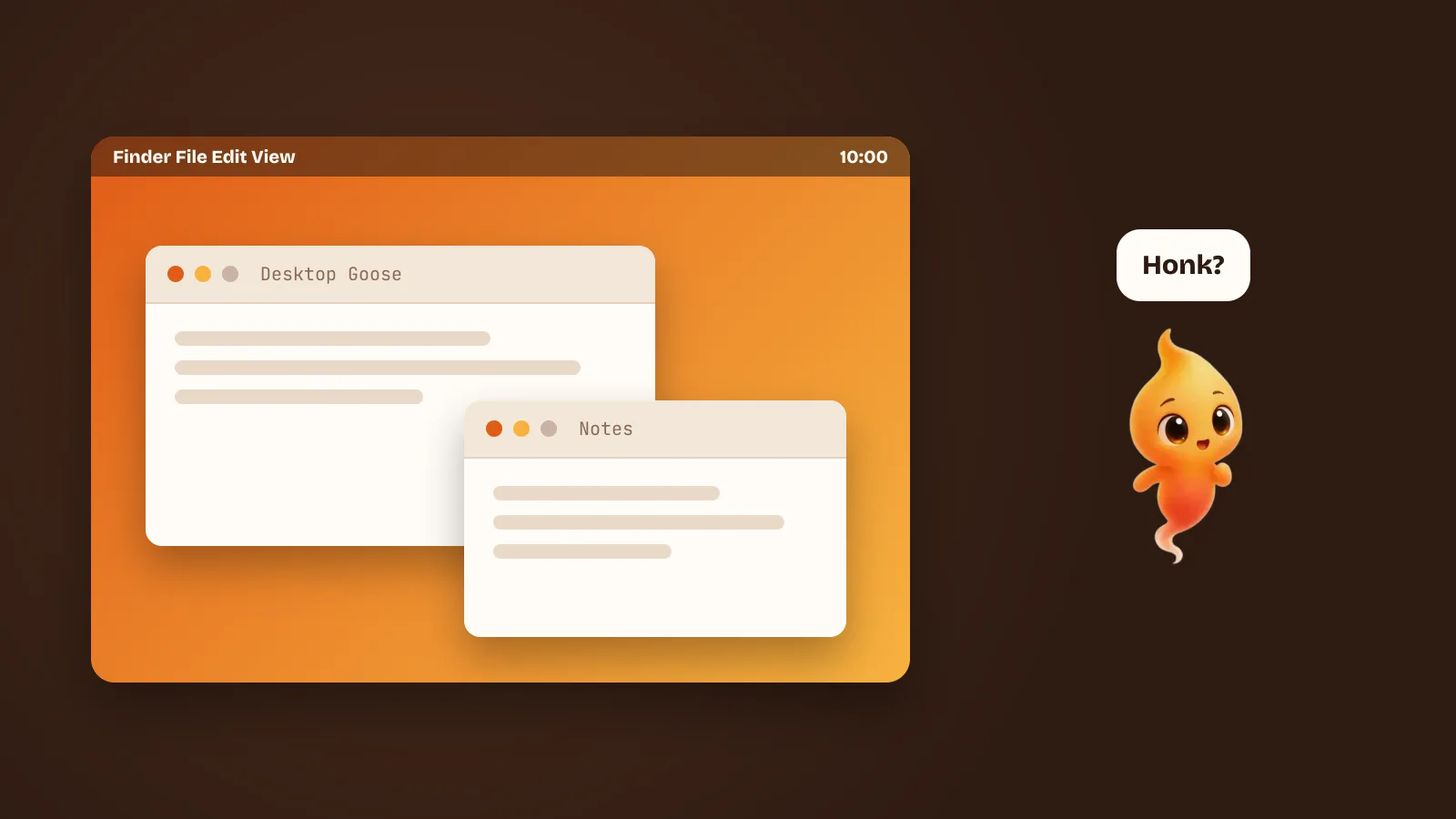
Desktop Goose is the desktop pet that doesn’t want to be your friend. It waddles across your screen, honks, tracks muddy footprints over your windows, grabs your cursor and drags it off, and pulls up notes and memes you didn’t ask for. People install it on a colleague’s computer. People install it on their own and regret it within an hour, happily.
There’s a Mac version, and it still runs. But it’s old, and a deadline is coming that matters for Mac users. Here’s what to know before you download it in 2026.
The short answer
- Yes, there’s an official Mac build. It’s on the developer’s itch.io page next to the Windows one, and the price is whatever you choose to pay.
- It’s old. The Mac download is version 0.22, from 2020. Windows reached 0.31 with the 2022 Autumn Update, so the Mac goose is missing the later features and mods.
- On an Apple Silicon Mac it most likely runs through Rosetta, Apple’s translator for Intel apps. That works today.
- Rosetta’s general support ends with macOS 27. Unless the Mac build is updated, plan on the goose not launching on macOS 28.
Where to get it
Desktop Goose is made by samperson and published on itch.io. The Mac port is credited to Jesús A. Álvarez. Download it from that itch.io page and nowhere else. It’s a prank app that grabs your mouse on purpose, which makes it an ideal disguise for something nastier, and mirror sites aren’t worth the risk.
It’s not affiliated with Untitled Goose Game, despite the shared spirit. That game is by House House and published by Panic, and its creators had nothing to do with this goose.
Installing it on a modern Mac
1. Unzip and move it. Drag the app into Applications before you open it.
2. Get past Gatekeeper. If the first open is blocked with a warning that Apple can’t verify the app, that’s Gatekeeper. On recent macOS, right-click → Open no longer skips it. You go to System Settings → Privacy & Security, scroll down, and click Open Anyway next to the message about the app. We explain what that warning means, and when to take it seriously, in “Apple could not verify” this app: what it means.
3. Let Rosetta install if asked. Apple Silicon Macs don’t ship with Rosetta pre-installed. The first time you open an Intel-only app, macOS offers to install it, which takes a minute. If the prompt doesn’t come up, you can install it from Terminal:
softwareupdate --install-rosetta --agree-to-licenseTo check what kind of app you have, select it in Finder and press ⌘I. Under Kind, “Application (Intel)” means it needs Rosetta, and “Application (Universal)” means it runs natively.
4. Allow what it asks for. A goose that grabs your cursor and moves things around may need permissions. If macOS asks for Accessibility access in Privacy & Security, that’s what it’s for. If it never asks and the goose never touches your cursor, Accessibility is the setting to check.
How to get rid of the goose
This is the most searched question about Desktop Goose, for good reason.
On Windows, the well-known way is to hold Esc for a few seconds until the goose leaves. On a Mac, try that first. If the goose won’t go, quit it the way you’d quit anything that’s misbehaving:
- Press ⌘⌥Esc (Command-Option-Escape), select Desktop Goose and click Force Quit, or
- Open Activity Monitor, search for “goose” and quit the process.
Either way the goose is gone until you open it again.
What changes after macOS 27
This is the real reason to read the version number before you download.
Apple has said Rosetta stays available as a general tool through macOS 27 Golden Gate, which shipped in September 2026. After that, macOS keeps only a narrow part of it for older games. Most Intel-only apps without an Apple Silicon version are expected to stop launching on macOS 28.
You can already see this coming. Golden Gate warns you when you open an app that relies on Rosetta. It also lists every one you’ve opened in the last year under System Settings → General → About → Intel-based Apps. If Desktop Goose shows up in that list, it’s on borrowed time.
Whether the goose survives depends on whether the Mac build is updated. Nothing on its page says that’s planned. Enjoy it on macOS 27 and don’t count on it after.
Alternatives that run natively on Apple Silicon
Nothing reproduces the goose’s particular brand of chaos exactly, and no native Mac clone of it turned up while we researched this post. But if you want something living on your desktop that will keep working after Rosetta:
- Shijima-Qt brings Shimeji, the original climbing, multiplying desktop mascots, to Mac with a native Apple Silicon build. It’s free and open source. It was discontinued in 2026 but still runs, and if you let your shimeji multiply, the result is goose-level chaos. The setup, and the other options, are in Shimeji on Mac in 2026: what still works.
- Bongo Cat is the opposite of chaos: a cat that slaps a desk in time with your typing. The open-source app has a native Apple Silicon build and is actively updated.
- Tamamon is a free Apple Silicon pet that hatches and grows as you use Claude. It’s more Tamagotchi than goose.
For the full tour, see Desktop pets for Mac: Shimeji, Bongo Cat and co.
And if you’d rather your pet did some work
We make Minnie, so this is a plug, but it’s a relevant one. She’s a desktop pet for the Mac in the same spirit as the goose: a character on top of your windows, with a personality. The difference is that she’s on your side.
She runs the AI coding agent you already have, such as Claude Code, Gemini CLI or Codex. You talk to her to give it a task. When the agent wants to do something that can’t be undone, she walks over and asks out loud before it happens. She’s native on Apple Silicon, free, and has never once stolen anybody’s cursor. The longer pitch is A desktop pet for your Mac that actually does work.
The goose is still the better prank, though.