
Claude Code notifications on Mac: why they don't fire
13 October 2026 · claude code · macos · permissions
You give Claude Code a task, switch to your browser, and come back ten minutes later to find it finished nine minutes ago. Or worse: it stopped after thirty seconds to ask permission for something, and has been sitting there waiting for you ever since.
Claude Code can tell you about both. On a Mac, though, it often doesn’t, and the reasons are spread across your terminal, your hook config and macOS. This post covers all of them, in the order you’re likely to hit them.
First: are you supposed to be getting them already?
Claude Code fires a notification when it finishes a task or stops for a permission prompt, and you appear to be away from the terminal. Whether that turns into something you see depends on which terminal you use:
| Terminal | Desktop notification out of the box |
|---|---|
| Ghostty, Kitty | Yes |
| iTerm2 | Yes, once you turn on one setting (below) |
| Apple Terminal, Warp, WezTerm | No |
| VS Code or Cursor’s built-in terminal | No |
If you use one of the “no” terminals, nothing is broken. Claude Code just has no way to raise a desktop notification from there, and you need one of the fixes further down.
iTerm2: open Settings → Profiles → Terminal, check Notification Center Alerts, then click Filter Alerts and enable Send escape sequence-generated alerts. Until you do, iTerm2 swallows the notification Claude Code sends it.
Every terminal: the terminal app itself needs permission to notify you. Check System Settings → Notifications, find your terminal, and make sure Allow Notifications is on.
tmux: notifications sent from inside tmux never reach the outer terminal
unless you let them through. Add set -g allow-passthrough on to
~/.tmux.conf and run tmux source-file ~/.tmux.conf.
Apple Terminal: the bell is probably switched off
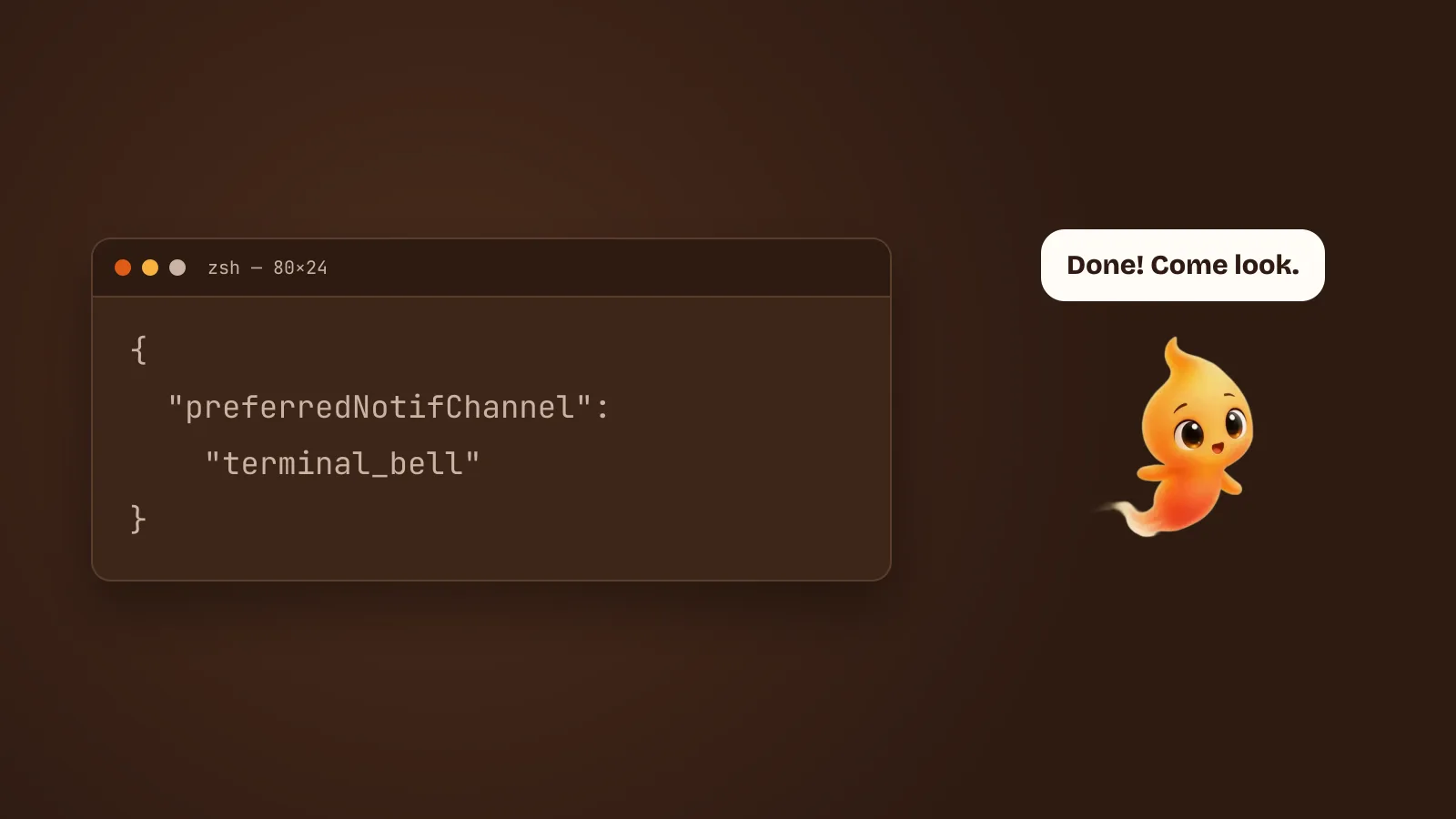
For terminals with no desktop notifications, Claude Code can ring the terminal
bell instead. Put this in ~/.claude/settings.json:
{
  "preferredNotifChannel": "terminal_bell"
}
In Apple Terminal there’s a catch. If you said yes to Claude Code’s first-run
terminal setup, it ran /terminal-setup, which turns off the audible bell in
your Terminal profile. Now you’ve asked for a bell that has been muted.
Turn it back on in Terminal → Settings → Profiles → Advanced → Audible bell. The same panel can also bounce or badge the Dock icon when the bell rings in a background window. That works well for a terminal you’ve buried under other windows.
The hook events, and which one is slow
For anything more than a bell, you use hooks: shell commands Claude Code runs
at points in its lifecycle. Anthropic’s hooks guide starts with a
Notification hook that runs osascript to show a macOS banner. It works. But
with no matcher, it fires for every notification type, and the two that
matter have very different timing:
| Event | When it fires | Good for |
|---|---|---|
Notification with permission_prompt |
The prompt has waited about 6 seconds and you haven’t typed. Each keystroke resets the wait | “It needs me”, slightly late |
Notification with idle_prompt |
About 60 seconds after Claude finishes, if you haven’t typed since | Little. A minute is a long time to wait to hear something finished |
PermissionRequest |
Immediately, as Claude asks to use a tool | “It needs me”, right now |
Stop |
Immediately, whenever Claude finishes responding | “It’s done”, right now |
StopFailure |
Immediately, when a turn dies on an API error such as a rate limit | “It stopped, and not because it finished” |
That 60-second idle_prompt delay explains a lot of “notifications don’t work”
reports: the task took 40 seconds, you checked back at 50, and the
notification was still 10 seconds away. Nothing was broken. It was waiting.
Two details from the hooks reference matter here:
Stopfires every time Claude finishes a reply, not only at the end of a big task. It does not fire when you interrupt it.PermissionRequestgets the tool name and its input, so the alert can say what Claude wants to do, not just that it wants something.
One script that only speaks up when you’re not looking
Since Stop fires on every reply, a plain Stop notification gets noisy fast.
You’re watching the terminal, Claude answers, and macOS chimes at you anyway.
The fix is to check which app is in front, and stay quiet if it’s your
terminal.
Save this as ~/.claude/hooks/notify.sh:
#!/bin/bash
# One notifier for Claude Code hooks. Claude Code passes the event as JSON
# on stdin. Stays quiet when a terminal or editor is already in front.
input=$(cat)

front=$(lsappinfo info -only name "$(lsappinfo front)" | sed -E 's/.*="(.*)"/\1/')
case "$front" in
  Terminal|iTerm2|Ghostty|kitty|WezTerm|Warp|Code|Cursor) exit 0 ;;
esac

project=$(basename "$(jq -r '.cwd' <<<"$input")")

case "$(jq -r '.hook_event_name' <<<"$input")" in
  PermissionRequest)
    detail=$(jq -r '.tool_input.command // .tool_input.file_path // empty' <<<"$input")
    message="Wants to use $(jq -r '.tool_name' <<<"$input")${detail:+: $detail}"
    sound=Ping ;;
  StopFailure)
    message="Stopped early: $(jq -r '.error' <<<"$input")"
    sound=Basso ;;
  Stop)
    message="Finished. Your turn."
    sound=Glass ;;
  *)
    message=$(jq -r '.message // "Needs your attention"' <<<"$input")
    sound=Glass ;;
esac

osascript - "$message" "Claude Code · $project" "$sound" >/dev/null <<'EOF'
on run argv
  display notification (item 1 of argv) with title (item 2 of argv) sound name (item 3 of argv)
end run
EOF
Make it executable:
chmod +x ~/.claude/hooks/notify.shThen wire it to the three events in ~/.claude/settings.json. If the file
already has a hooks key, add these as siblings inside it rather than
replacing it:
{
  "hooks": {
    "PermissionRequest": [
      { "hooks": [{ "type": "command", "command": "~/.claude/hooks/notify.sh" }] }
    ],
    "Stop": [
      { "hooks": [{ "type": "command", "command": "~/.claude/hooks/notify.sh" }] }
    ],
    "StopFailure": [
      { "hooks": [{ "type": "command", "command": "~/.claude/hooks/notify.sh" }] }
    ]
  }
}
A few things about it that are easy to miss:
- The title carries the project name. Run three sessions and you’ll know which one is done.
- Permission alerts say what’s wanted. “Wants to use Bash: npm test” is something you can judge from a banner. “Claude Code needs your attention” isn’t.
- The message goes in as an argument, not pasted into the AppleScript. A command with quotes in it would otherwise break the script.
- It prints nothing. A
PermissionRequesthook can approve or deny a request by printing JSON. This one stays silent, so Claude Code still shows you the normal prompt. lsappinfoneeds no permissions, unlike asking System Events for the front app. To see the name your terminal reports, runlsappinfo info -only name "$(lsappinfo front)"in it.jqships with recent macOS at/usr/bin/jq. On an older system,brew install jq.
Type /hooks inside Claude Code to confirm all three show up. To test,
ask for something that needs approval, then switch to another app within a
couple of seconds.
One gap: a sandboxed command asking for network access doesn’t trigger
PermissionRequest. If you use the sandbox, also add a Notification hook
with "matcher": "permission_prompt" pointing at the same script.
When the notification still doesn’t show up
Work through these in order. The first two cover most cases.
- Script Editor isn’t allowed to notify.
osascriptnotifications come from Script Editor. If it has never been given permission, the command fails silently and macOS never asks. Runosascript -e 'display notification "test"'once so Script Editor appears in System Settings → Notifications, then turn on Allow Notifications for it. - A Focus mode is on, or you’re sharing your screen. Do Not Disturb, or any Focus that doesn’t list Script Editor, holds notifications back without telling you. In System Settings → Focus, open the Focus you use while coding and add Script Editor under allowed apps. macOS also hides notifications while you mirror or share your display. If you pair over screen share, turn on Allow notifications when mirroring or sharing the display in System Settings → Notifications.
- The banner came and went. Banners disappear after a few seconds. If you’re often away from the screen, set Script Editor’s alert style to Alerts in System Settings → Notifications, so they stay until you dismiss them.
- The hook isn’t loaded. Run
/hooks. If it’s missing, the usual cause is a JSON syntax error insettings.json, or a secondhookskey that overwrote the first. - The script fails on its own. Run it by hand:
echo '{"hook_event_name":"Stop","cwd":"/tmp/demo"}' | ~/.claude/hooks/notify.sh. Run it with your terminal in front and it correctly does nothing. To test it for real, putsleep 3;before it and switch apps. - You’re using
idle_promptfor “done”. That’s the 60-second delay. UseStop. - You’re in Claude Desktop or the VS Code extension. These time
permission_promptdifferently: about six seconds after the request, whether or not you’re typing.
A sound with no banner
If all you want is a sound, skip the script. afplay plays any file in
/System/Library/Sounds:
{
  "hooks": {
    "Stop": [
      { "hooks": [{ "type": "command", "command": "afplay /System/Library/Sounds/Glass.aiff" }] }
    ]
  }
}
Using a different sound for each event works surprisingly well. After a day, you know Glass means “done” and Ping means “it’s asking” without looking up.
Banners you can click
macOS banners from osascript don’t do anything when clicked. If you want a
click to take you back to the terminal, install terminal-notifier:
brew install terminal-notifierand replace the osascript call in the script with:
terminal-notifier -title "Claude Code · $project" -message "$message" \
  -sound "$sound" -activate com.googlecode.iterm2
-activate takes your terminal’s bundle ID: com.apple.Terminal,
com.googlecode.iterm2, com.mitchellh.ghostty, net.kovidgoyal.kitty or
com.microsoft.VSCode. It brings the app to the front, though not necessarily
the right tab or split.
A notification still leaves you to answer the prompt
All of the above solves finding out. It doesn’t solve the second half of a permission prompt, which is still sitting in a terminal waiting for you to go back, find the right tab, read what Claude wants and press a key. If you’re reading a doc or in a call, you’ll put that off. The agent keeps waiting.
That gap is what we built Minnie for. She’s a desktop pet who runs Claude Code for you. When it wants to edit a file, run a command or push a branch, she comes over and asks out loud, and you answer by saying yes or no. You don’t have to go and find a terminal tab, and you get the prompt even with your back to the screen. Speech is recognised on your Mac, she uses the Claude Code login you already have, and the app is free. The out-loud consent flow is Claude Code only for now. Talk to Claude Code with your voice on a Mac explains how it works.
It’s also worth having fewer prompts in the first place. Claude Code permission prompts, without the babysitting covers allow rules, plan mode, and what to pre-approve.
The short version
- Ghostty and Kitty notify out of the box. iTerm2 needs Send escape sequence-generated alerts. Apple Terminal, Warp, WezTerm and VS Code need a bell or a hook.
- Apple Terminal: set
preferredNotifChanneltoterminal_bell, then turn the audible bell back on, because the first-run setup turned it off. idle_promptwaits about 60 seconds. UseStopto hear about “done” andPermissionRequestto hear about “needs me”.- Check which app is in front before notifying, or
Stopwill chime on every reply. - No banner? Check Script Editor’s notification permission, then Focus.