
Keep your Mac awake while Claude Code works
17 October 2026 · claude code · macos · productivity
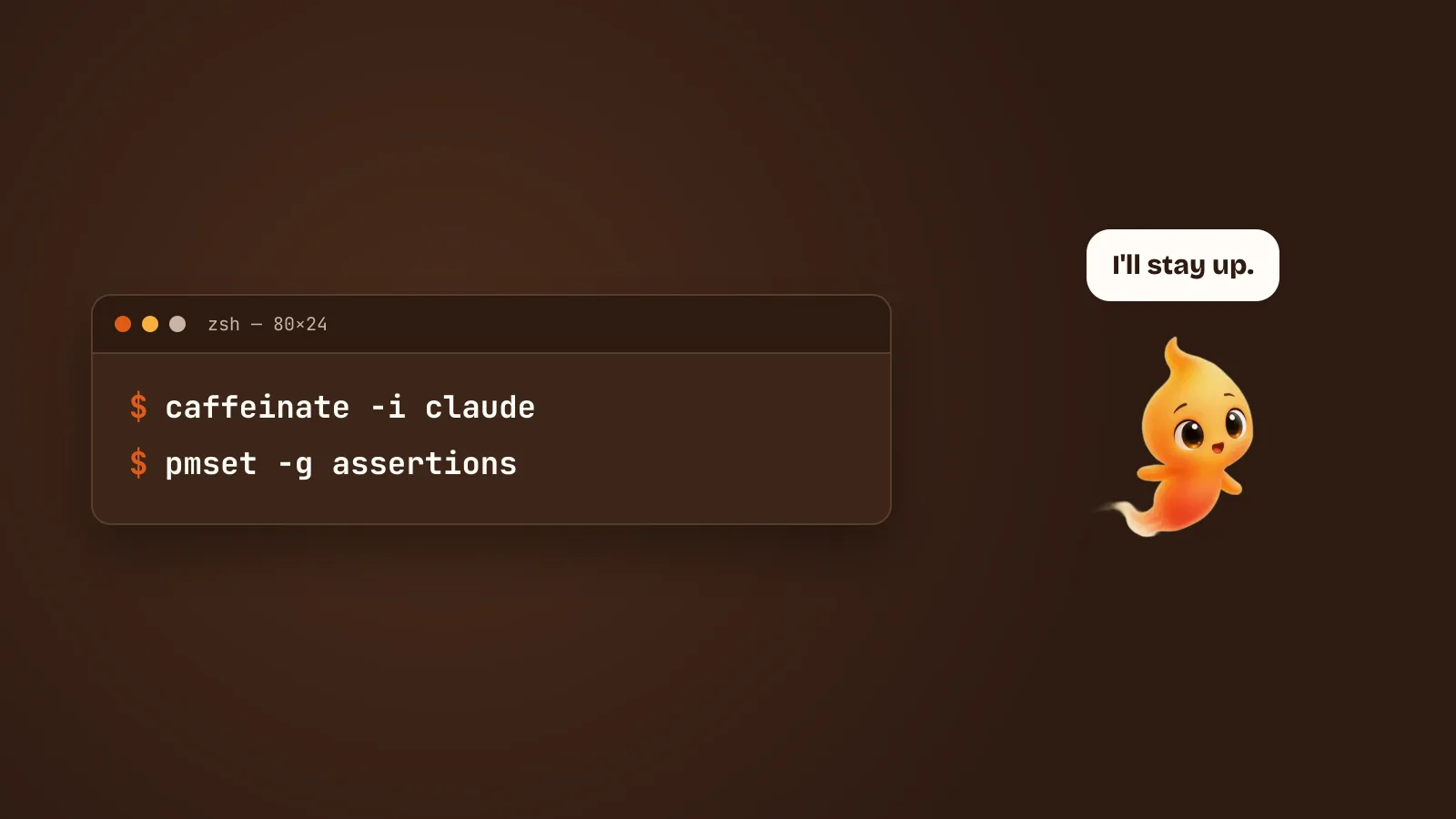
The whole point of a coding agent is that you can give it a long task and walk away. So you do. You come back twenty minutes later, and your Mac is asleep, the screen is black, and Claude Code stopped about two minutes after you left.
macOS doesn’t know a terminal agent is busy. To the power manager, a Mac nobody has touched for a few minutes is idle, and idle Macs sleep. Here’s how to keep it awake for exactly as long as the agent needs, and no longer.
What happens when the Mac sleeps mid-task
Sleep freezes every process, Claude Code included. Nothing is lost on disk, and when the Mac wakes, the process carries on. The trouble is what was in flight. A request to the model that was halfway through streaming its answer gets cut off, and Claude Code has to notice and recover.
It’s got much better at that. Claude Code’s changelog is full of fixes for exactly this case, such as stream timeouts after waking, background sessions that stopped after a sleep, and logins that broke on wake. But “recovers after sleeping” isn’t the same as “kept working while you were away”. For the twenty minutes you were gone, nothing happened.
Doesn’t Claude Code keep the Mac awake itself?
Not reliably, and it’s worth checking rather than assuming. Older versions
of Claude Code started a caffeinate process on macOS. The changelog
mentions fixing one that didn’t exit when Claude Code did. When we checked
on version 2.1.294, a non-interactive claude -p run was in the middle of a
command and held no sleep assertion at all.
You can check your own setup in a few seconds. While Claude Code is working, open another Terminal tab and run:
pmset -g assertionsLook under Listed by owning process. If nothing there belongs to
caffeinate or to Claude Code with PreventUserIdleSystemSleep, nothing is
holding your Mac awake for the agent. Some other entries keep it awake while
the display is on, and those stop counting once the screen turns off.
The fix: caffeinate
macOS ships with a command for exactly this. caffeinate tells the power
manager not to sleep, and when you give it a command to run, it holds that
promise only for as long as the command runs:
caffeinate -i claudeThat starts Claude Code as normal. Your Mac won’t idle-sleep while the
session is open. When you quit Claude Code, caffeinate exits with it and
sleep goes back to normal. You don’t have to remember to turn it off.
The flags that matter:
| Flag | Keeps awake | Use it when |
|---|---|---|
-i |
The system (no idle sleep) | Almost always. The screen can still turn off, which saves power. |
-d |
The display | You want to watch the output from across the room. |
-s |
The system, even more firmly | You’re on the power adapter. macOS ignores it on battery. |
-u |
Declares you active | Rarely needed. It turns the display on and lasts 5 seconds unless you add -t. |
-i on its own is the right default. Your display still sleeps, which is
most of the power saving, and the agent keeps working behind it.
To check it’s working, run pmset -g assertions again. You’ll see a line
like this:
caffeinate asserting on behalf of 'claude'Already started a session?
You don’t need to restart it. Open a second Terminal tab and give
caffeinate a time limit instead:
caffeinate -i -t 7200That keeps the Mac awake for two hours (7200 seconds) and then lets go on its own. Press Ctrl+C in that tab to stop it early.
Make it the default
If you always want this, add an alias to your ~/.zshrc:
alias claude='caffeinate -i claude'Open a new Terminal window and every claude you type is covered. The
alias only applies in your shell. Editors and apps that start Claude Code
themselves don’t read your .zshrc, so they aren’t covered by it.
Closing the lid is different
caffeinate -i stops idle sleep. Closing a MacBook’s lid is not idle
sleep. It’s a direct instruction to sleep, and caffeinate -i doesn’t
override it. Shut the lid and the agent stops, whatever you ran.
The one built-in exception is closed-display mode, sometimes called clamshell mode. A MacBook stays awake with the lid shut if it’s connected to power, an external display, and an external keyboard or mouse. That’s a desk setup, though, not “shut the lid and put it in your bag”. If you want to walk away from a laptop mid-task, leave the lid open and let the screen turn itself off.
That’s also the safer habit. A laptop that keeps working in a closed bag has nowhere for the heat to go.
The System Settings route
If you’d rather not touch Terminal, macOS has a setting for this. It only works on the power adapter:
- MacBook: System Settings → Battery → Options, then turn on Prevent automatic sleeping on power adapter when the display is off.
- Desktop Mac: System Settings → Energy, then turn on Prevent automatic sleeping when the display is off.
It’s a blunt tool. It keeps the Mac awake whenever it’s plugged in, not just
while an agent is running, and Apple notes it may increase power
consumption. caffeinate is the better fit because it ends when the work
ends. The setting is fine on a desktop Mac that’s always plugged in anyway.
If you use a desktop app
Apps that run Claude Code for you can do this themselves. The Claude
desktop app has its own Keep awake setting. Other wrappers, menu bar
utilities and desktop pets vary, so check what yours does with
pmset -g assertions instead of assuming. It’s the same check as above, and
it’s the only way to know for sure.
Knowing when it’s safe to let it sleep
Keeping the Mac awake fixes the agent stopping. It doesn’t tell you when the agent finished, or that it’s been sitting on a permission prompt since two minutes after you left. That second case is the one that wastes an afternoon. A Mac kept awake for an hour by an agent that was waiting for a yes the whole time.
Claude Code notifications on Mac covers getting an alert for the two events that matter, and Claude Code permission prompts, without the babysitting covers having fewer prompts to miss in the first place. Or there’s Minnie, the desktop pet we make. She shows whether the agent is working, finished or waiting on you, so a glance at the corner of your screen tells you whether it’s safe to let the Mac sleep.