
Claude Code worktrees: run parallel sessions safely
15 October 2026 · claude code · productivity
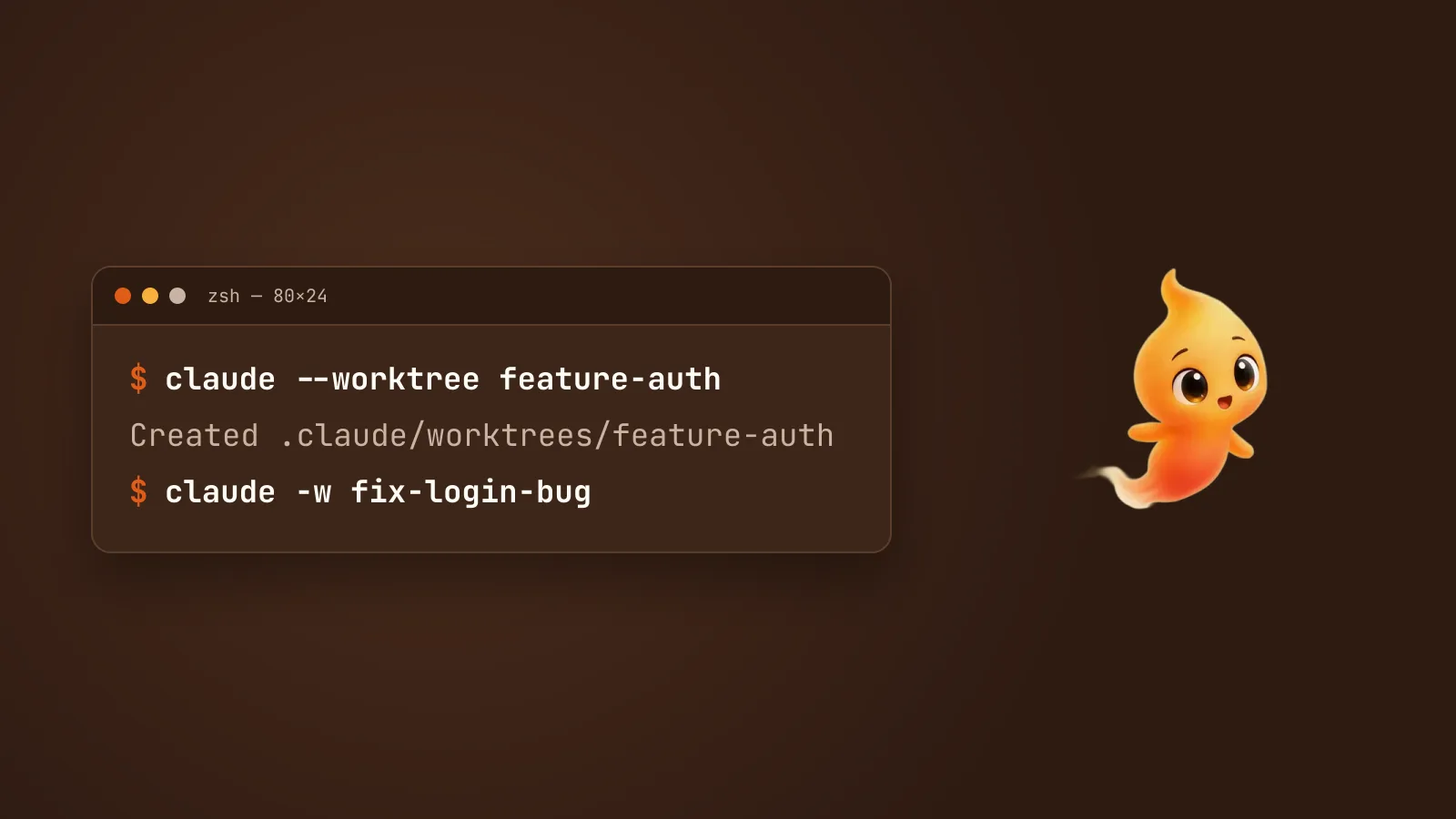
Sooner or later you want two Claude Code sessions at once. One builds a feature while the other fixes a bug. Run them both in the same folder and they edit the same files, run the same tests against each other’s half-finished changes, and leave you with a diff nobody can explain.
Git worktrees fix that, and Claude Code has them built in. This guide covers the one command you need, the setup step that trips everyone up, and what happens to your work when you exit.
The short version
claude --worktree feature-authIn a second terminal:
claude --worktree fix-login-bugEach session now has its own copy of your files on its own branch. They
can’t step on each other. -w is the short form of --worktree.
What a worktree actually is
A git worktree is a second working folder for the same repository. It has
its own files and its own checked-out branch, but it shares the repository’s
history, remotes and .git folder with your main checkout. That’s what
makes it different from cloning the repo twice. A commit made in one
worktree is immediately visible from the others, and you don’t push or pull
between them.
When you pass --worktree feature-auth, Claude Code:
- creates the folder at
.claude/worktrees/feature-auth/in your repository - creates a new branch for it called
worktree-feature-auth - starts the session inside that folder
Leave the name off and it makes one up, something like bright-running-fox.
Pick real names when you’ll have more than one going. You’ll be looking at
them in git branch later.
By default the branch starts from your remote’s default branch, usually
origin/main, not from whatever you have checked out. That’s usually what
you want, a clean start. If you want the worktree to carry your current
unpushed work, set this in your Claude Code settings:
{
  "worktree": {
    "baseRef": "head"
  }
}
Three things to do once per repo
1. Ignore the worktree folder. Otherwise every worktree’s files show up as untracked files in your main checkout:
echo '.claude/worktrees/' >> .gitignore2. Copy your .env files across automatically. A worktree is a fresh
checkout, so it only has tracked files. Your .env, .env.local and any
other gitignored config aren’t there, and the session’s first test run fails
for reasons that have nothing to do with the code. Add a .worktreeinclude
file to the root of your repo, using the same syntax as .gitignore:
.env
.env.local
config/secrets.json
Claude Code copies every file that matches and is gitignored into each new worktree. Tracked files are never duplicated.
3. Run Claude once in the repo first. --worktree needs the folder to
be trusted. If you’ve never run claude in this repo, it’ll exit with an
error and ask you to. Run claude once, accept the prompt, and you’re done.
The repo also needs at least one commit. In a brand-new repo,
--worktree fails with Failed to resolve base branch "HEAD".
The step everyone skips: dependencies
Your node_modules, .venv, target/ or Pods/ folder is gitignored, so
it isn’t in the worktree. Each worktree needs its own install. The fastest
way is to make it the first thing you ask:
install dependencies, then run the tests so we know the baseline
Don’t add node_modules to .worktreeinclude to save time. Copying a large
dependency folder is slow, and some packages contain absolute paths that
break when moved.
Watch your ports too. Two worktrees that both run npm run dev will both
reach for the same port, and the second one fails or quietly picks another.
Tell each session which port to use if you need both servers up at once.
What happens when you exit
This is where people lose work, or think they have. When you leave a worktree session, Claude Code checks it first:
- Nothing changed: an unnamed session’s worktree and branch are removed automatically. If you named the session, it asks first.
- There are changes or new commits: it asks whether to keep or remove the worktree. Keep leaves the folder and branch exactly as they were. Remove deletes both, including the work in them. Read that prompt before you hit Enter.
- It can’t tell: it asks rather than guessing.
If you keep it, Claude Code prints the command to get back in. It’s the same
--worktree name with --resume added:
claude --worktree feature-auth --resumeTo bring the work home, treat the worktree’s branch like any other branch.
Push it and open a pull request, or merge worktree-feature-auth from your
main checkout. You can also start a worktree straight from an open pull
request. Quote it so your shell doesn’t read # as a comment:
claude --worktree "#1234"Worktrees for subagents
You can also give subagents a worktree each, so several of them can edit in
parallel inside one session. Ask Claude to “use worktrees for your agents”,
or make it permanent for a custom subagent by adding one line to its
frontmatter in .claude/agents/:
---
name: refactorer
description: Applies mechanical refactors across many files
isolation: worktree
---
Each subagent’s worktree is temporary. It’s removed when the subagent finishes without changes. Ones that did make changes stay until they can be cleaned up without losing anything.
Cleaning up by hand
Worktrees pile up. To see what you have and remove one:
git worktree list
git worktree remove .claude/worktrees/feature-auth
Add --force if it has uncommitted changes you’re sure you don’t want. If
git says the worktree is locked, run git worktree unlock on it first.
Claude Code locks a worktree while an agent is running in it, so make sure
nothing is still working there. Then delete the leftover branch with
git branch -d worktree-feature-auth.
If you need a worktree on an existing branch, or outside the repository, use git directly and start Claude inside it:
git worktree add ../myapp-hotfix hotfix-123
cd ../myapp-hotfix
claude
The real limit is you
Worktrees solve the files problem completely. They don’t solve the attention problem. Three sessions means three terminals, and at any moment one of them is probably sitting on a permission prompt you haven’t seen. The agent that finished ten minutes ago looks exactly like the one that’s still thinking.
A few things help:
- Name sessions after the task, not
testandtest2, so a glance at the tab bar tells you which is which. - Set up notifications for the two events that matter: a session wants your input, or a session finished. Claude Code notifications on Mac shows how to set those up without drowning in alerts.
- Decide your permission rules once, not per session. Approvals you save with “don’t ask again” in a worktree are shared across the repo’s other worktrees, so setting them up deliberately pays off.
This is also the problem we built Minnie for. She’s a desktop pet that sits on your Mac and shows what your coding agent is doing, so “waiting for you” looks different from “still working” without your having to check a terminal. She also asks out loud before the agent does anything risky. If you’re comparing other ways to put an interface on Claude Code, Claude Code has no GUI. Here is what people use covers the field.