
Claude Code on Mac: Terminal vs iTerm2 vs Ghostty
29 October 2026 · claude code · macos · comparison
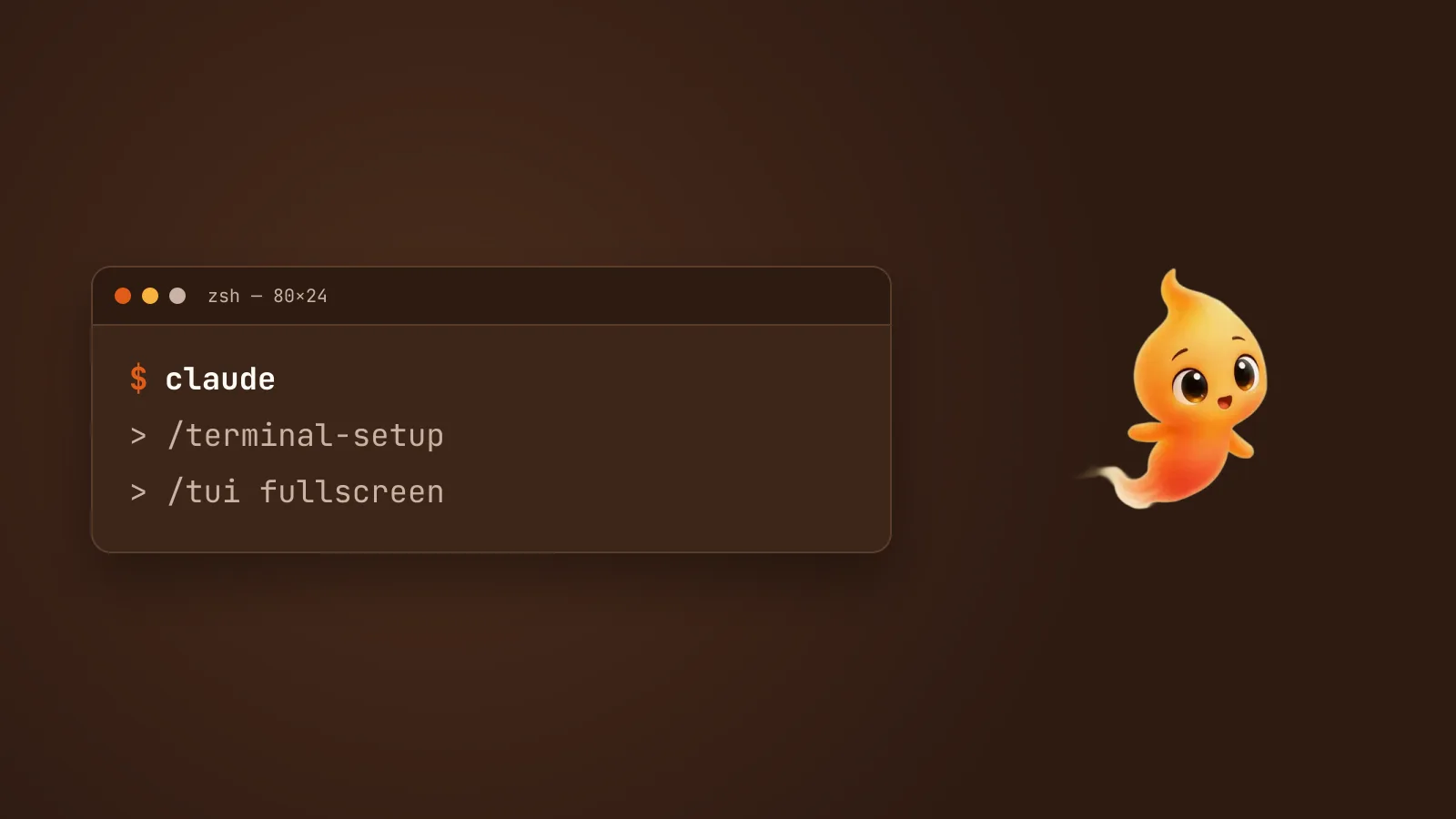
Claude Code runs in any Mac terminal, but they don’t all treat it the same. One shows a notification when Claude needs you and another stays silent. One copies cleanly with ⌘C and another needs a setting turned on first. The differences are small, and they add up across a day.
Here are the three terminals most Mac developers choose between, compared on the things that actually change how Claude Code feels.
The short answer
- Starting fresh? Ghostty. It’s free, open source, fast, and the one where the most things work with no setup, notifications included.
- Already live in iTerm2? Stay. Turn on two settings (below) and it’s just as good.
- Happy with Terminal? It works fine. Run
/terminal-setuponce and set up notifications, because it won’t show them on its own.
Side by side
| Terminal (built in) | iTerm2 | Ghostty | |
|---|---|---|---|
| Price, licence | Comes with macOS | Free, GPL v2 | Free, MIT |
| Desktop notification when Claude needs you | ❌ not by default | ✅ | ✅ |
| Shift+Enter for a new line | ✅ | ✅ | ✅ |
| Option as Meta (Option+Enter, Option+P) | One setting, or /terminal-setup |
One setting | One config line |
| ⌘C copies in fullscreen mode | Use Ctrl+Shift+C | ✅ | ✅ |
| Plain click opens a link | ⌘-click | ⌘-click | ✅ |
| Key to select text natively over Claude Code’s mouse handling | Fn |
Option |
Shift (as in most terminals) |
The rows that matter most are the first two. Notifications decide whether you notice Claude waiting on you. Shift+Enter is the one everyone tries first, and it now works in all three without any setup.
Notifications: the real difference
Claude Code stops and waits whenever it needs a decision from you, a permission, a question, or simply being done. If you’ve switched to your browser, the only thing that tells you is a notification.
By default, Claude Code sends a desktop notification only in Ghostty, Kitty and iTerm2. In Terminal, nothing appears.
To get one in Terminal, either have Claude Code ring the terminal bell, by
adding this to ~/.claude/settings.json:
{
  "preferredNotifChannel": "terminal_bell"
}
or use a Notification hook. Claude Code notifications on Mac: why they don’t fire walks through both, plus the macOS notification permission that silently blocks them in every terminal.
Over SSH, Ghostty forwards the notification back to your Mac with no setup. iTerm2 needs it turned on: Settings → Profiles → Terminal, tick Notification Center Alerts, then under Filter Alerts enable Send escape sequence-generated alerts.
The one-time setup for each
Terminal
Run this once inside Claude Code:
/terminal-setupIn Terminal it turns on Option as Meta and turns off the audible bell in your profile. That makes Option+Enter (new line) and Option+P (switch model) work. If you want the bell back, it’s in Settings → Profiles → Advanced → Audible bell. Claude Code also offers to run this the first time you start it in Terminal.
To set Option as Meta by hand instead: Settings → Profiles → Keyboard, tick Use Option as Meta Key.
iTerm2
Two settings, and both are worth it:
- Let Claude Code copy to the clipboard. Settings → General →
Selection, turn on Applications in terminal may access clipboard.
/terminal-setupdoes this for you, then restart iTerm2. On your own Mac, Claude Code copies through the system clipboard anyway. This setting matters when Claude Code runs on another machine over SSH. Then it copies by sending an escape sequence that iTerm2 ignores until this is on, and/copyreports success while nothing arrives. - Enable mouse reporting. Settings → Profiles → Terminal, turn on Enable mouse reporting. Fullscreen mode (below) needs it for wheel scrolling, clicking to expand results and selecting text.
For Option as Meta: Settings → Profiles → Keys → General, set both Left Option key and Right Option key to Esc+.
One limitation: if you use iTerm2’s tmux integration (tmux -CC),
Claude Code’s fullscreen mode is switched off. Plain tmux inside iTerm2 is
fine.
Ghostty
Notifications, Shift+Enter and ⌘C copying all work out of the box. The only thing you might want is Option as Meta, which in Ghostty is a line in its config file:
macos-option-as-alt = trueGhostty’s macOS builds are signed and notarized, so it opens without a Gatekeeper warning. Install it from ghostty.org or with Homebrew:
brew install --cask ghosttyFullscreen mode, and why it matters most in iTerm2
Claude Code has a second way of drawing itself, called fullscreen rendering.
It doesn’t mean maximising the window. It takes over the terminal’s screen the
way vim or htop does, and only draws what’s visible. The result is no
flicker, flat memory use on long sessions, mouse support, and an input box
that stays put at the bottom.
/tui fullscreenAnthropic’s docs say it helps most where drawing speed is the bottleneck,
and they name the VS Code terminal, tmux and iTerm2. /tui default switches
back. On newer accounts it may already be on. /tui on its own tells you
which one you’re using.
In fullscreen mode, Claude Code handles the mouse itself. When you want the
terminal’s own text selection back for a moment, hold the key from the table:
Fn in Terminal, Option in iTerm2, Shift in most others.
What about the VS Code terminal?
It works, with two catches:
- Shift+Enter needs
/terminal-setupthere, which writes a keybinding into VS Code’s settings. The same goes for Cursor. - It doesn’t receive Claude Code’s desktop notifications, and very large pastes can lose characters.
For long agent sessions, a separate terminal window tends to be the better home, and it’s also one you can keep visible while your editor is full screen.
The part no terminal solves
Every one of these still asks you to keep a terminal in view, or trust a notification you might dismiss without reading. That’s the gap Minnie fills, the desktop pet we make. She sits on top of every app and shows whether Claude Code is working, done or waiting on you. She also asks out loud before it runs anything, so the terminal can stay wherever you like.
New to Claude Code on a Mac? Install Claude Code on a Mac, start to finish gets you set up, and Claude Code has no GUI. Here is what people use covers the apps that put an interface on it.