
Uninstall Claude Code from a Mac completely
23 October 2026 · claude code · macos · install
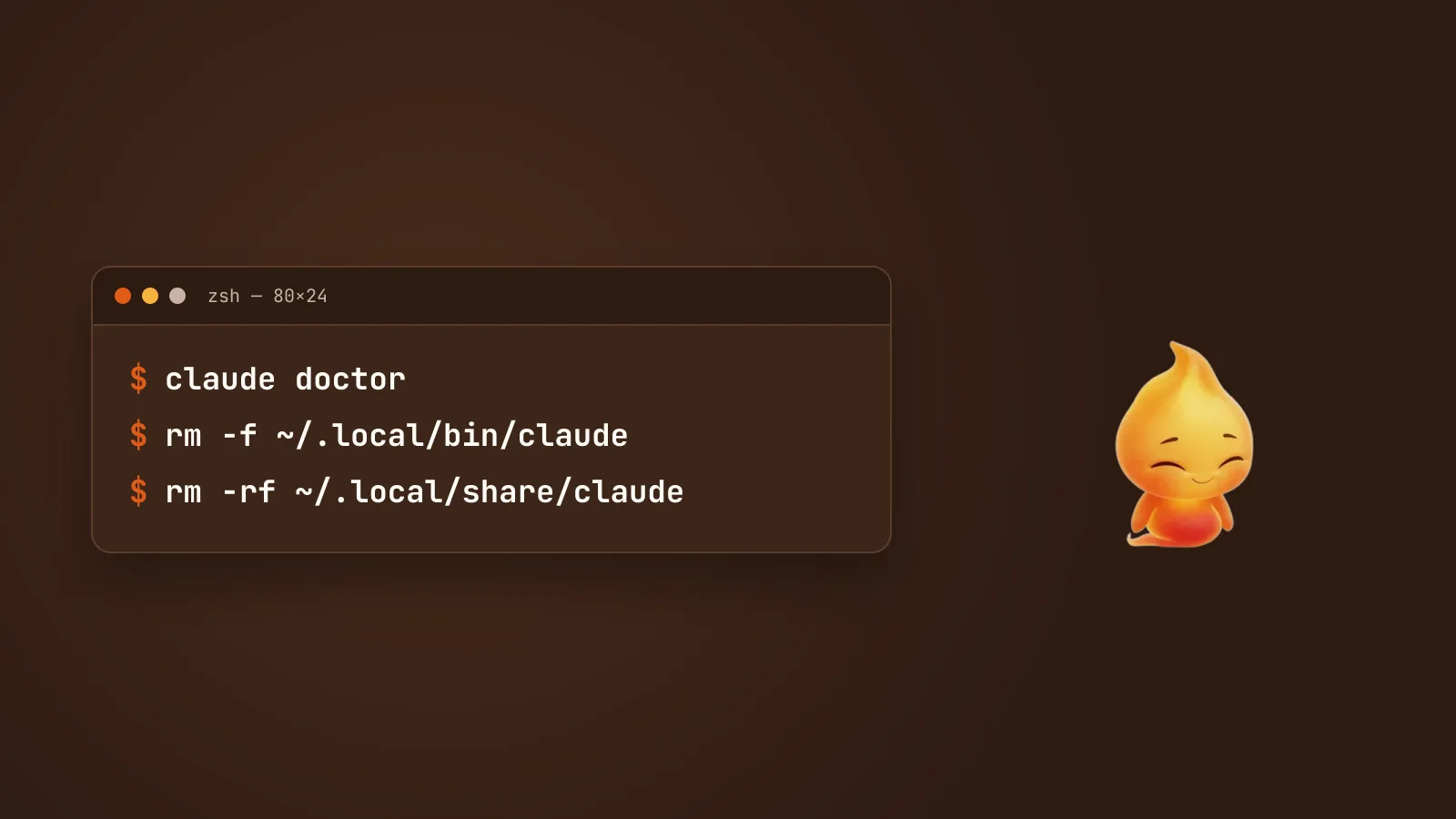
Uninstalling Claude Code from a Mac takes one command for the program, then a few more for everything it left behind: your settings and history, a cache or two, and your login, which isn’t in a file at all. It’s in the macOS Keychain.
How far you go depends on why you’re uninstalling. If you’re fixing a broken install, you only need step 2. If you’re leaving for good, or handing the Mac to someone else, do the whole thing.
Before you start: sign out
If you still have a working claude, start it and run:
/logoutThat signs you out properly and removes the saved login. It’s the cleanest way to deal with the Keychain part, and it’s much easier than finding the entry by hand later. Then quit Claude Code.
Step 1: find out how it was installed
Each installer puts Claude Code somewhere different, and you need to remove the right one. Run:
which -a claude
ls -la ~/.local/bin/claude| You see | It was installed with |
|---|---|
~/.local/bin/claude, a link into ~/.local/share/claude/versions/ |
The native installer (the curl … install.sh one) |
/opt/homebrew/bin/claude |
Homebrew |
| a path inside an npm or Node folder | npm install -g |
~/.claude/local/ |
An old local install from early versions |
One catch with /opt/homebrew/bin: if your Node.js came from Homebrew, an
npm install lands there too. Run ls -l "$(command -v claude)". If the
arrow points into a node_modules folder, it’s npm, not Homebrew, and
brew uninstall will say it isn’t installed.
More than one line means more than one install. Remove all of them, or the
one you forget will still answer to claude.
Step 2: remove the program
Native installer:
rm -f ~/.local/bin/claude
rm -rf ~/.local/share/claude
The first line removes the claude command. The second removes every
downloaded version behind it.
Homebrew. Remove whichever cask you have. brew list --cask | grep claude-code tells you which:
brew uninstall --cask claude-codeIf you installed the faster-moving cask, it’s
brew uninstall --cask claude-code@latest instead.
npm:
npm uninstall -g @anthropic-ai/claude-codeOld local install:
rm -rf ~/.claude/localThen open a new Terminal window and run which -a claude. It should print
nothing. If it still finds one, there’s another install, or an old claude
alias in your ~/.zshrc. Search the file for claude and delete the stale
line.
If you’re reinstalling to fix something, stop here. Run the installer again and your settings, history and login are all still there.
Step 3: remove your settings and history
This is the step you can’t undo. It deletes your settings, the commands you approved with “don’t ask again”, your MCP server setup and your session history:
rm -rf ~/.claude
rm -f ~/.claude.json
~/.claude can be surprisingly big. Session history and file backups
accumulate. Check before you delete if you’re curious:
du -sh ~/.claudeWait if you use another Claude tool. The Claude desktop app, the VS Code
extension and the JetBrains plugin also write to ~/.claude. If any of them
is still installed, it recreates the folder the next time it runs, and you
may also be deleting settings it relies on. Uninstall them first if you want
~/.claude to stay gone.
Your projects have their own files too. Claude Code may have created these inside your repositories:
.claude/, the project’s settings and permission rules.mcp.json, MCP servers shared with the projectCLAUDE.md, the project instructions
The first two are Claude Code’s, and you can delete them from a project.
CLAUDE.md is something you, or your team, wrote. Often it’s the most
useful description of the codebase that exists. Think before deleting it,
and if the repo is shared, it isn’t only yours to delete.
Step 4: remove the caches
A few smaller folders sit outside ~/.claude:
rm -rf ~/.cache/claude
rm -rf ~/.local/state/claude
rm -rf ~/Library/Caches/claude-cli-nodejs
These hold downloads in progress, lock files and old logs. They’re safe to
delete, and not every Mac has all three. If you’d set XDG_CACHE_HOME,
XDG_STATE_HOME or XDG_DATA_HOME, look there instead of the default
folders.
Step 5: the login in your Keychain
On a Mac, Claude Code doesn’t keep your login in a file. It saves it in your
login Keychain. Deleting every folder above leaves it there. If you ran
/logout at the start, it’s already gone. If you couldn’t, because claude
was already broken, here’s how to find it.
List what’s there (this shows names only, not passwords):
security dump-keychain | grep '"svce"' | grep "Claude Code"You’ll see one or more entries named Claude Code-credentials, sometimes
with a short code on the end, like Claude Code-credentials-1a2b3c4d. The
suffixed ones typically come from Claude Code run with a different config
folder, which some apps that wrap Claude Code do. Delete each one by its exact
name:
security delete-generic-password -s "Claude Code-credentials"Or open Keychain Access, search for Claude Code, and delete the
entries there.
Leave Claude Safe Storage alone. It belongs to the Claude desktop app,
not to Claude Code, and deleting it breaks the app’s own saved data.
One edge case: if your Keychain was locked when you logged in, for example
over SSH, Claude Code saves the login to ~/.claude/.credentials.json
instead. Step 3 already removed that, because it lives inside ~/.claude.
Step 6: anything that pointed at it
Last, the things that only used Claude Code:
- Your
PATHline. If you added~/.local/binto yourPATHfor Claude Code, it’s harmless to leave, and other tools (Codex and Antigravity CLI, for example) install there too. Remove it from~/.zshrconly if nothing else needs it. - Apps built on top of it. GUIs, editor plugins and desktop companions
that run Claude Code for you will stop working, or say they can’t find
claude. Uninstall them too, or point them at a different agent.
A quick checklist
which -a claude                      # prints nothing
ls ~/.claude ~/.claude.json          # "No such file or directory"
security dump-keychain | grep "Claude Code-credentials"   # prints nothing
Three empty results means Claude Code is fully gone.
If you’re switching rather than leaving, our guides to installing Codex CLI and moving from Gemini CLI to Antigravity cover the other agents, and Claude Code vs Gemini CLI vs Codex on a Mac compares them. If you’re coming back later, Install Claude Code on a Mac, start to finish gets you running again in about ten minutes. And if you use Minnie, she works with all of them, so changing agents doesn’t mean changing the pet.